Customer feedback profiles
Common tab
This page is to create the profile of questions and answers, which are appearing on the customer feedback devices.
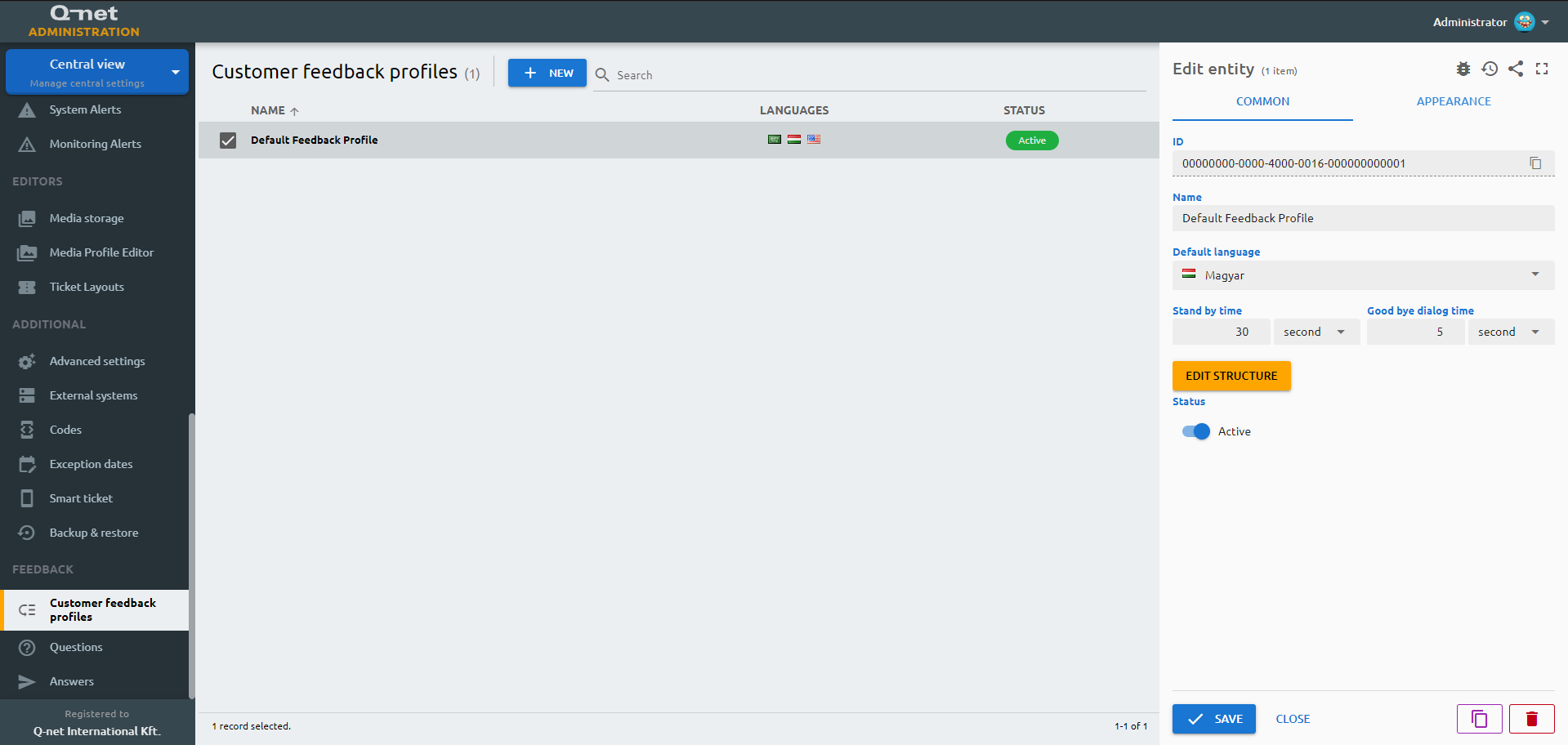
In order to create a new profile (the list of questions and answers to be shown after the transaction), click on "+ New" button, or select an available profile to edit it. On the right "Edit entity" panel you can see the ID of the profile and can edit the following parameters:
feedback-profile) or tab (common) in fields.yml!Edit structure
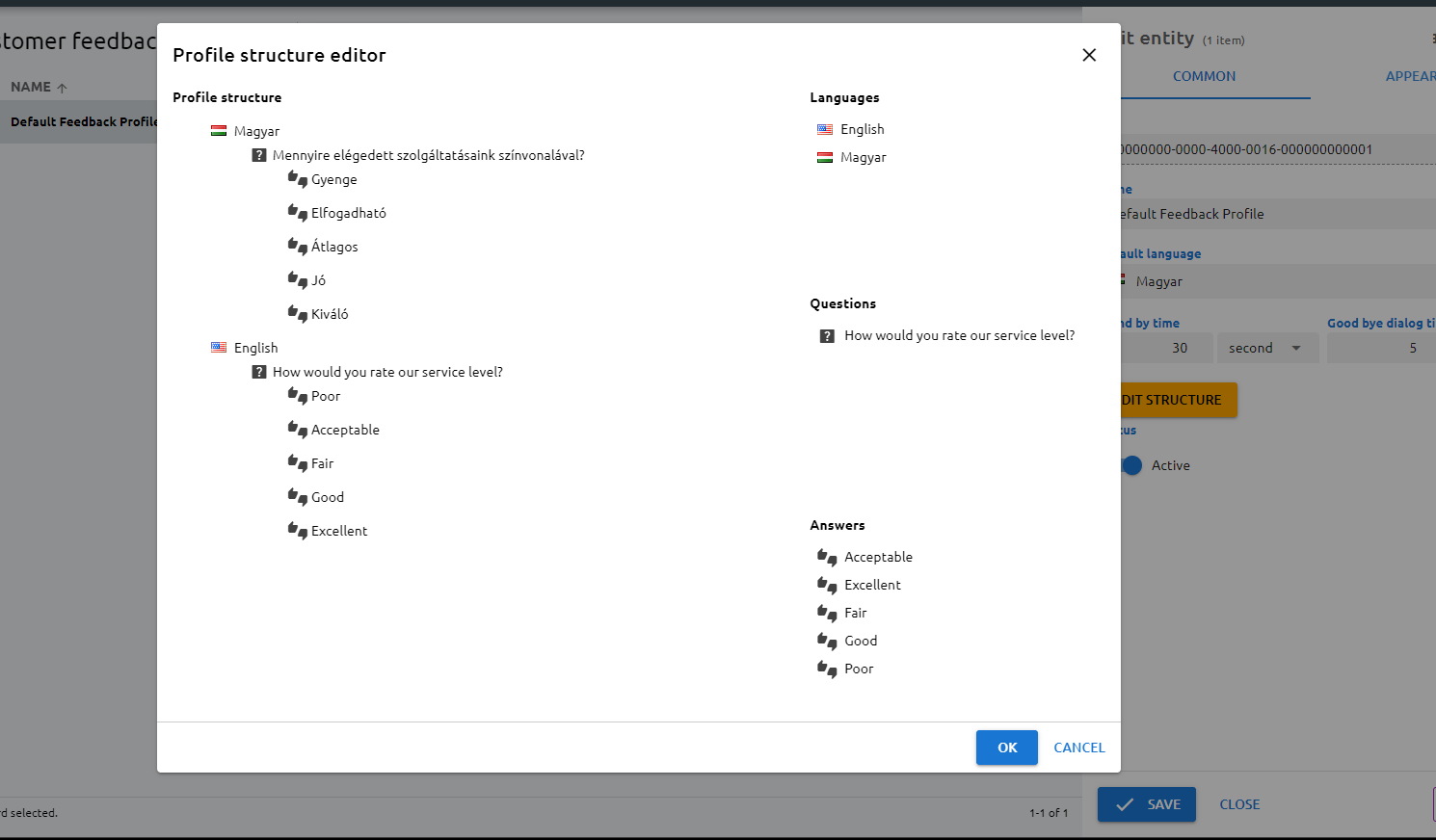
Click on the "Edit structure" button to edit the list of questions and the answers for these questions. In the appearing editor the languages, questions and answers can be pulled into the profile by drag and drop the selected item. First drag a language, then a question under the language, and answer(s) under the question. In case you don't need an item, to remove it, drag and drop it to the top center of the screen, where a red square appears.
When you are ready with the desired structure, click on the "Save" button.
Appearance tab
With the help of this tab it is possible to customize the appearance of the customer feedback page on the device.
Header visible
Switch ON/OFF to show or hide the header of the page.
Header left text
Enter a text to be shown on the left side of the header.
Header right text
Enter a text to be shown on the right side of the header.
Footer visible
Switch ON/OFF to show or hide the footer of the page.
Footer left text
Enter a text to be shown on the left side of the footer.
Footer right text
Enter a text to be shown on the right side of the footer.
Language button style
This selection list allows to choose among different language selection buttons: Waving flag, normal flag, button with the name of the language
Keyboard style
Choose between numeric or alphanumeric virtual keyboards (for tickets with letter prefixes)
Custom CSS
This field allows to enter custom CSS code to modify the appearance with more options.
Custom JS
This field allows to enter custom JavaScript code to modify the behaviour of the page.
Questions
To create questions, click "New", or select an available question to edit it.
Common tab
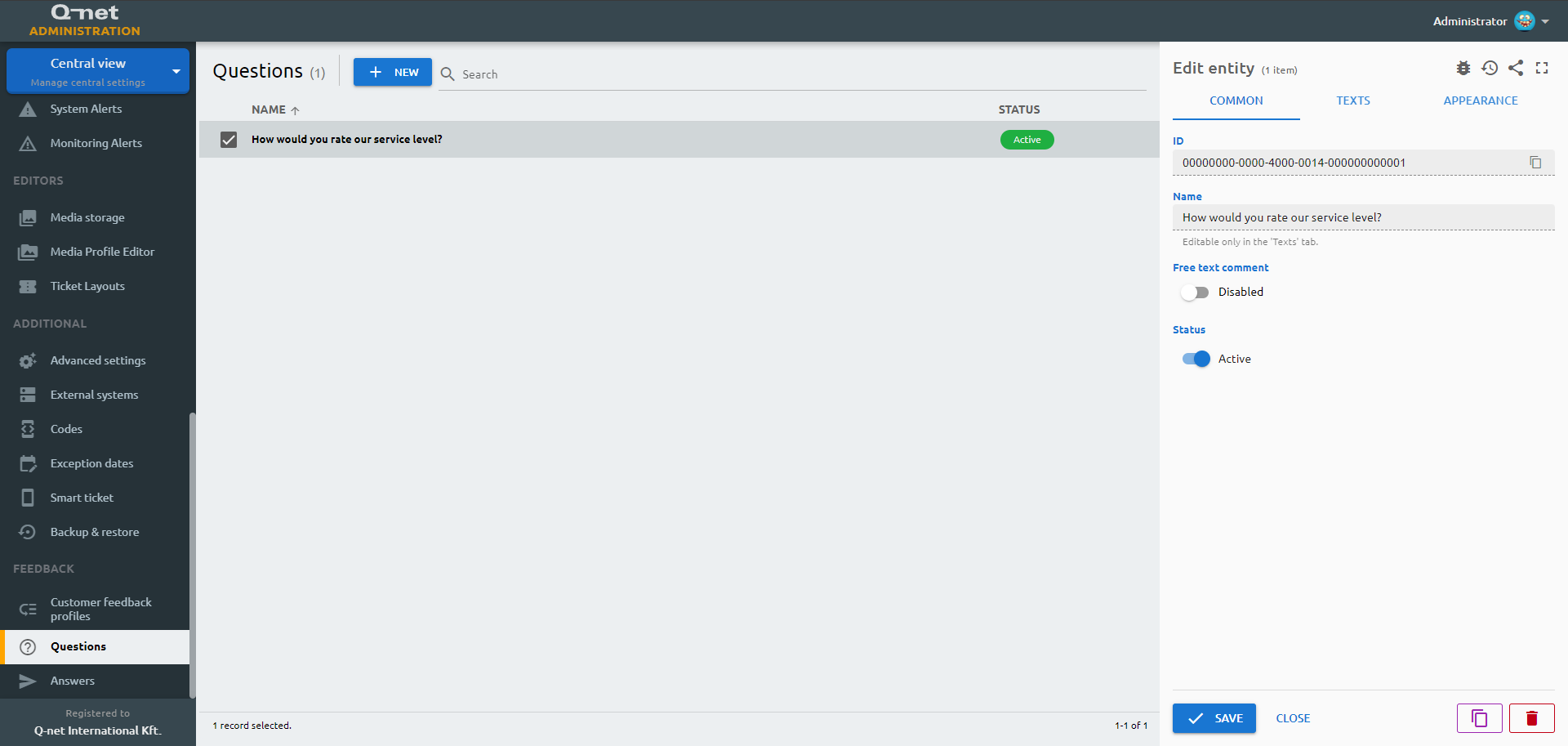
On the "Common" tab You can see the ID of the question and you are able to edit the following parameters:
Name
Not editable, it is showing the question on the default language (can be edited on "Texts" tab).
Free text comment
When enabled, a text field appears, this is showing the comment which appears under the question. (The text is editable under Textx tab on all available languages)
Status
Enable or disable the question to be shown or not on the screen of the device.
Texts tab
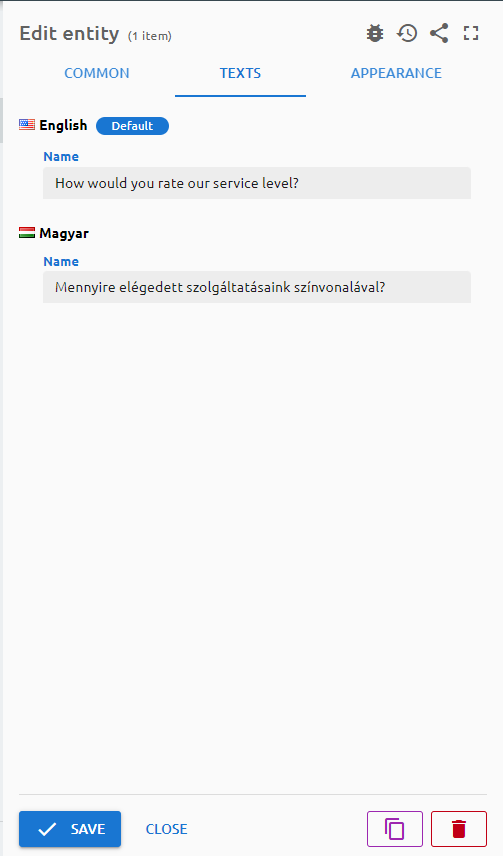
Enter the required questions on the available languages. Also an optional comment can be entered, which appears under the question.
Appearance tab
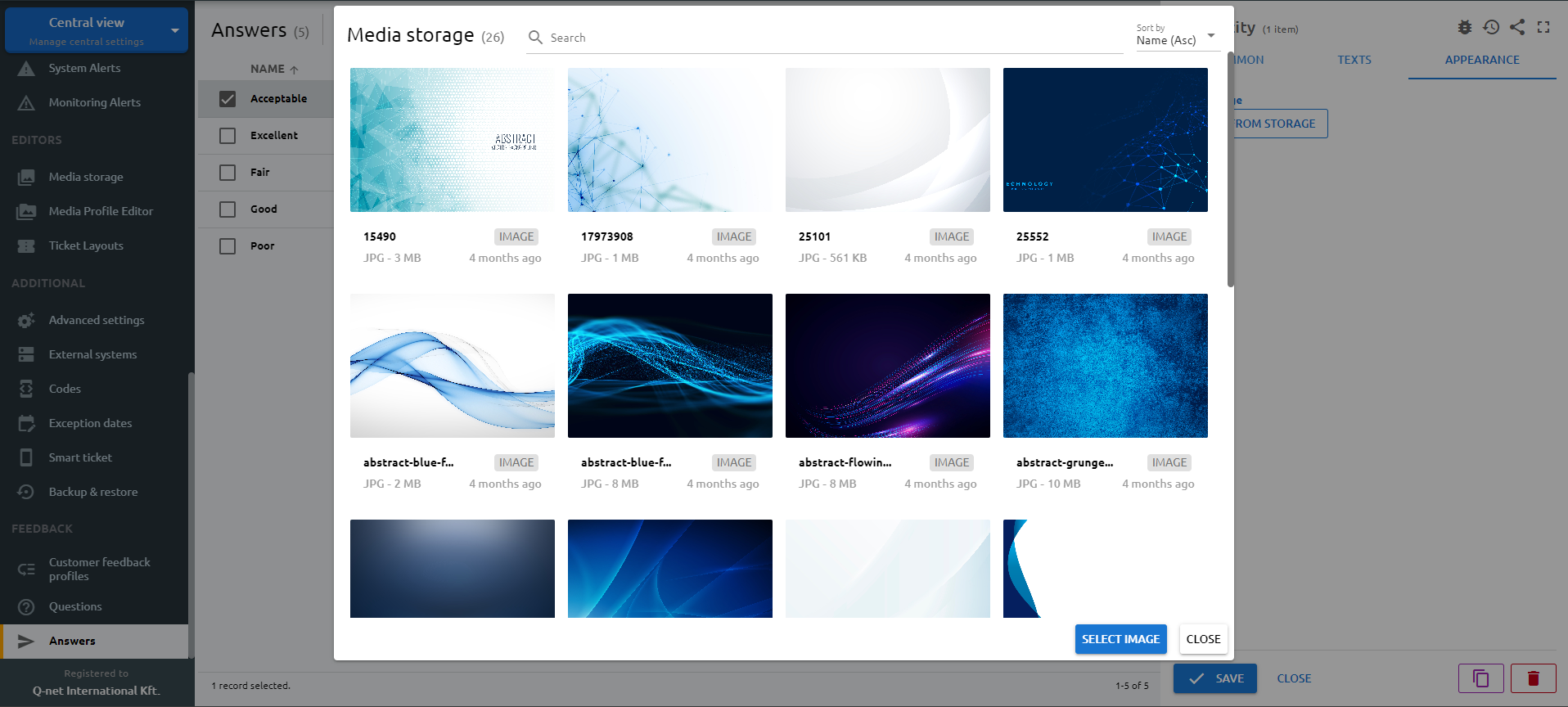
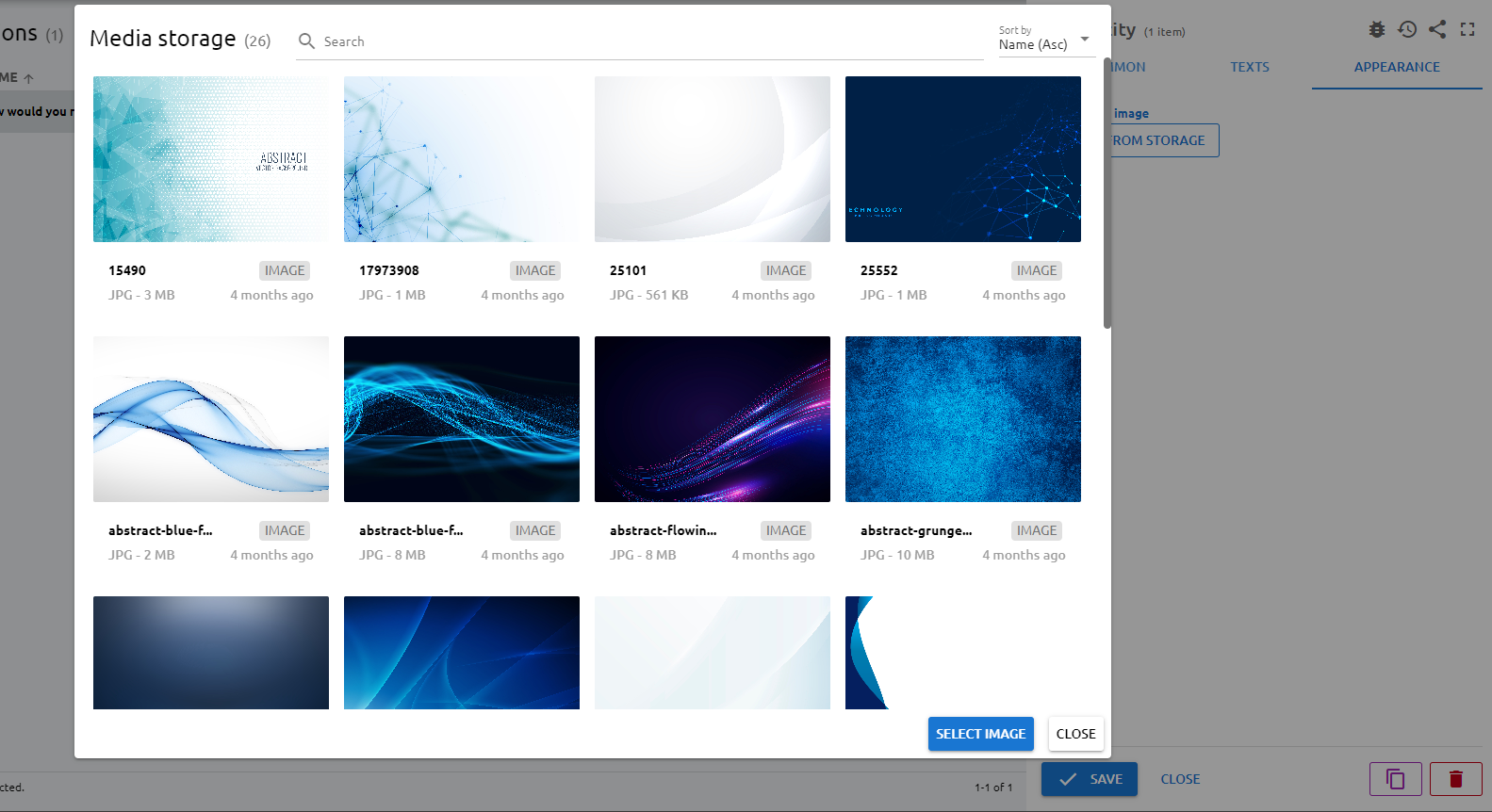
On this page the appearance can be customized, by changing the backround image of the page. Choose one of the available images and click "Select image" button. Further images can be uploaded in Editors > Media storage menu.
Answers
To create answers which can be selected by the customers for the given questions, click "New", or select an available question to edit it.
Common tab
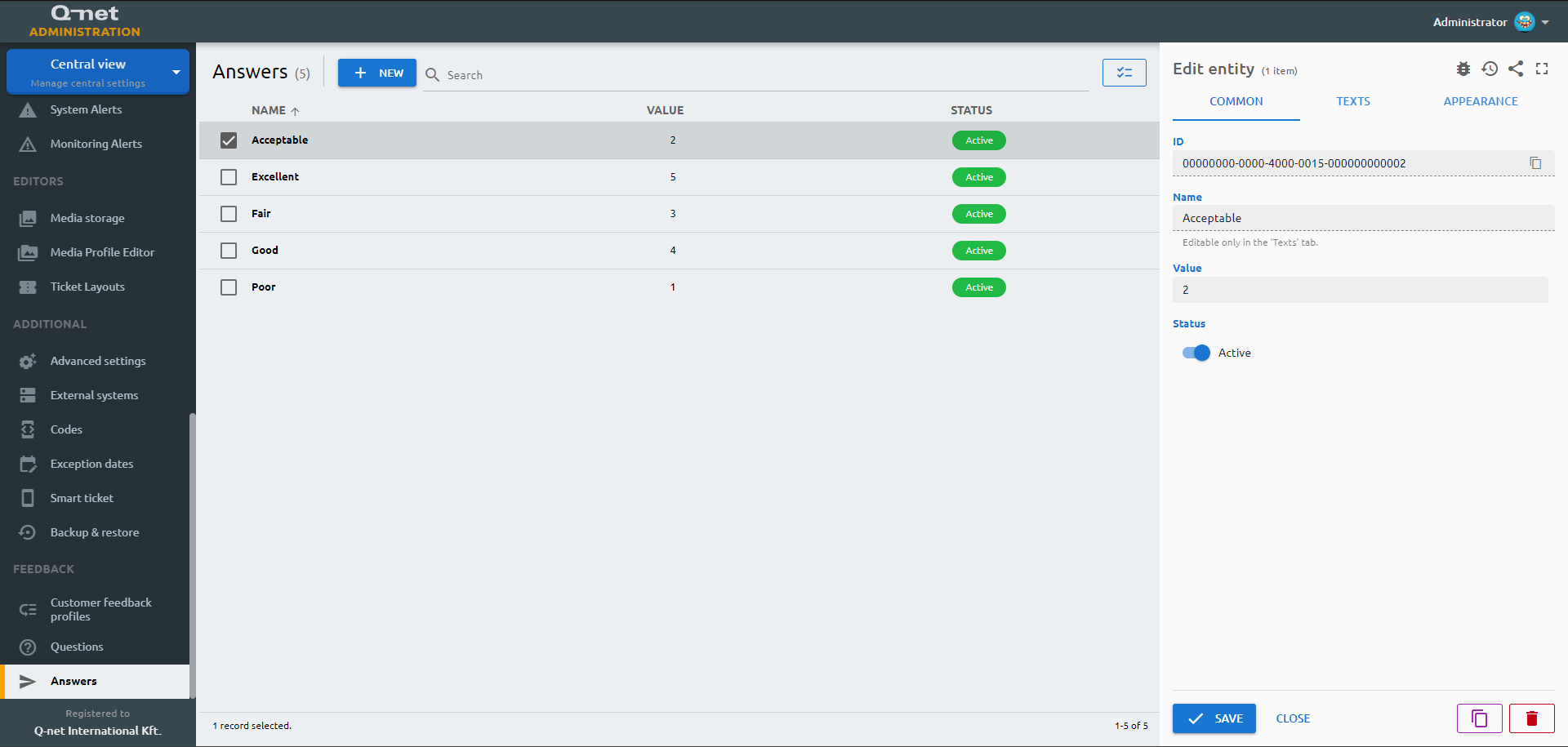
On the "Common" tab You can see the ID of the question and you are able to edit the following parameters:
Name
Not editable, it is showing the answer on the default language (can be edited on "Texts" tab).
Value
It is possible to define a value for the answer (higher value for better, lower value for lower ratings). With the help of these values, the reports will calculate the average of evaluations.
Status
Texts tab
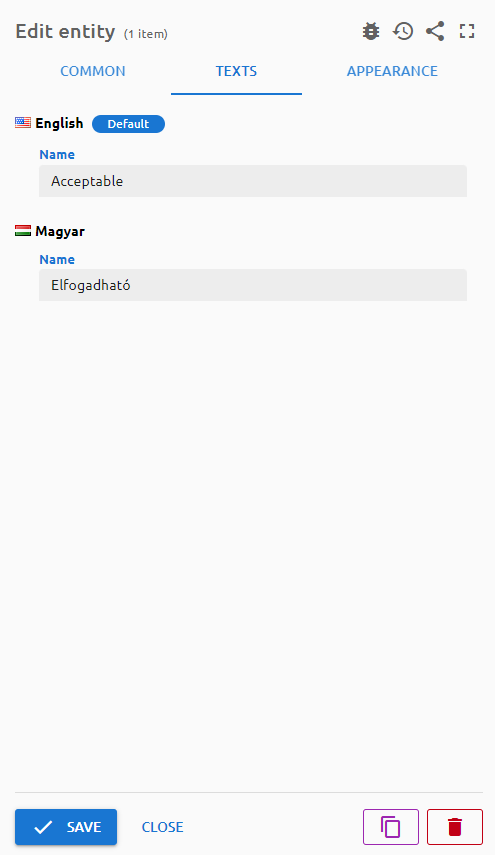
Enter the required text of the answer on the available languages.
Appearance tab
On this page the appearance can be customized, by changing the backround image of the page. Choose one of the available images and click "Select image" button. Further images can be uploaded in Editors > Media storage menu.