Media player
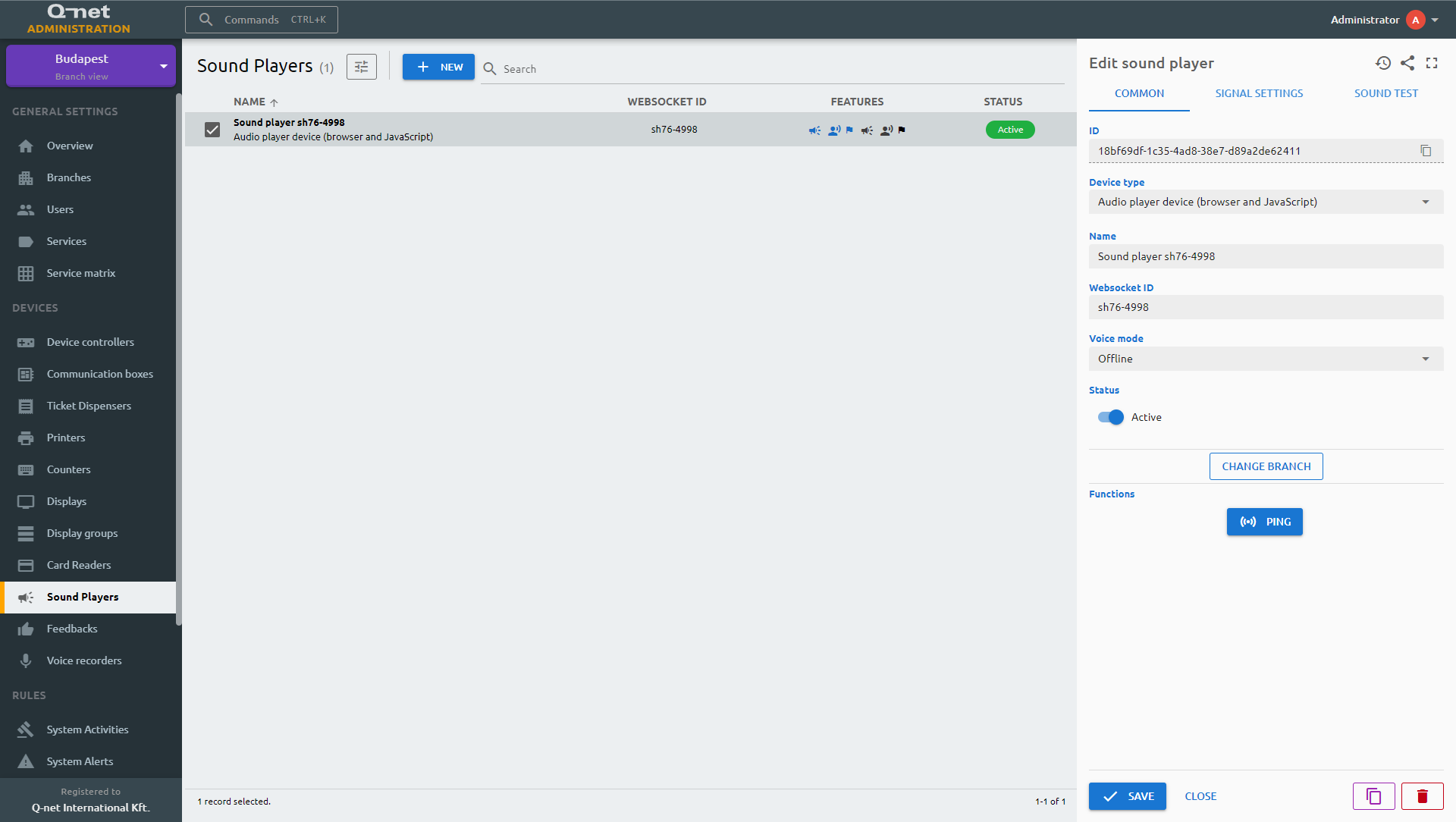
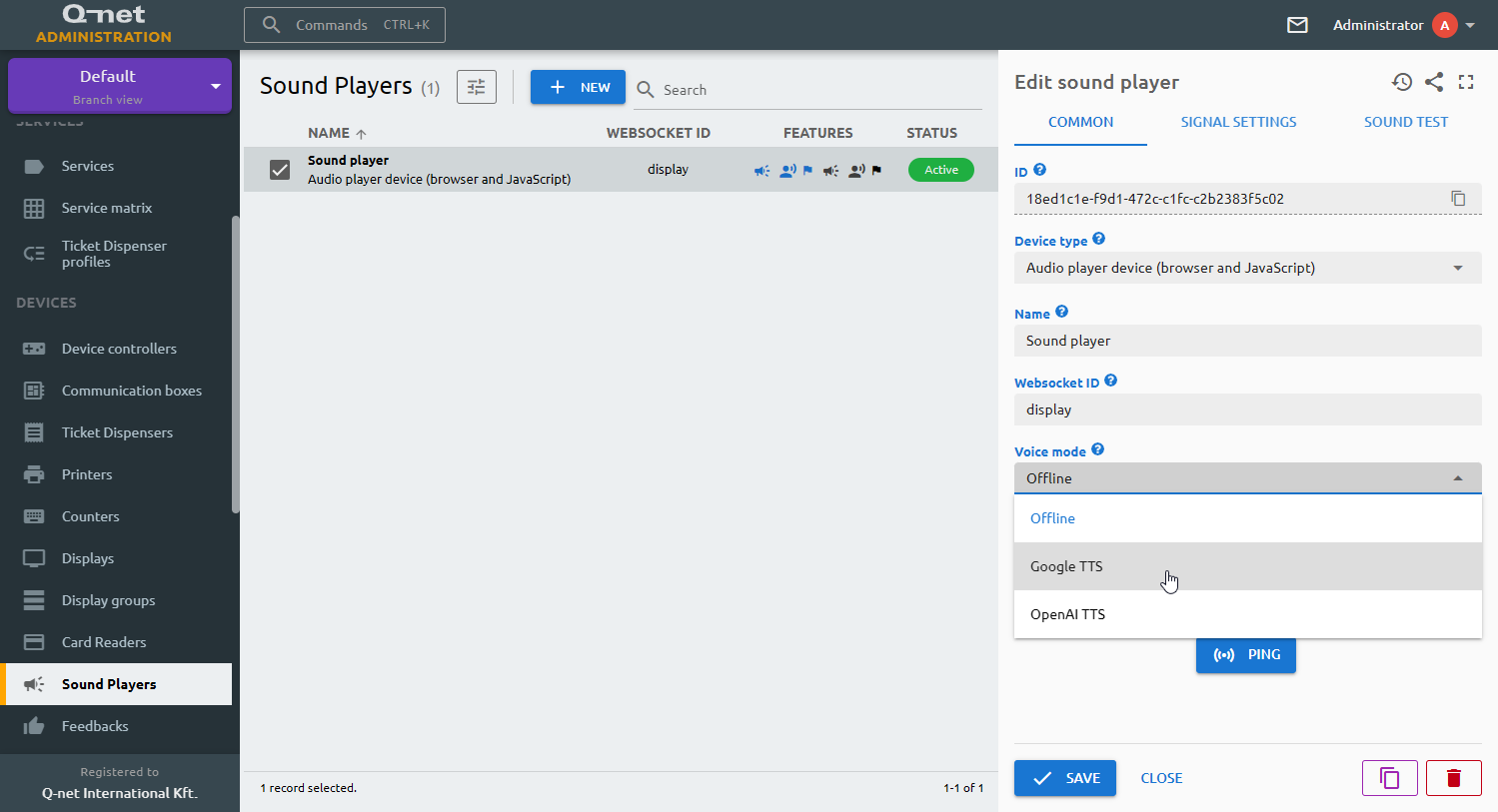
It is possible to use any of the web interfaces as sound player as well, but typically it is the media player application which is in the waiting area and connected to a TV with speakers available. This sound player type can be added as "Audio player device (browser and JavaScript)" At the "Websocket ID" field use the WSID of the particular Media player which will emit the sound.
Offline
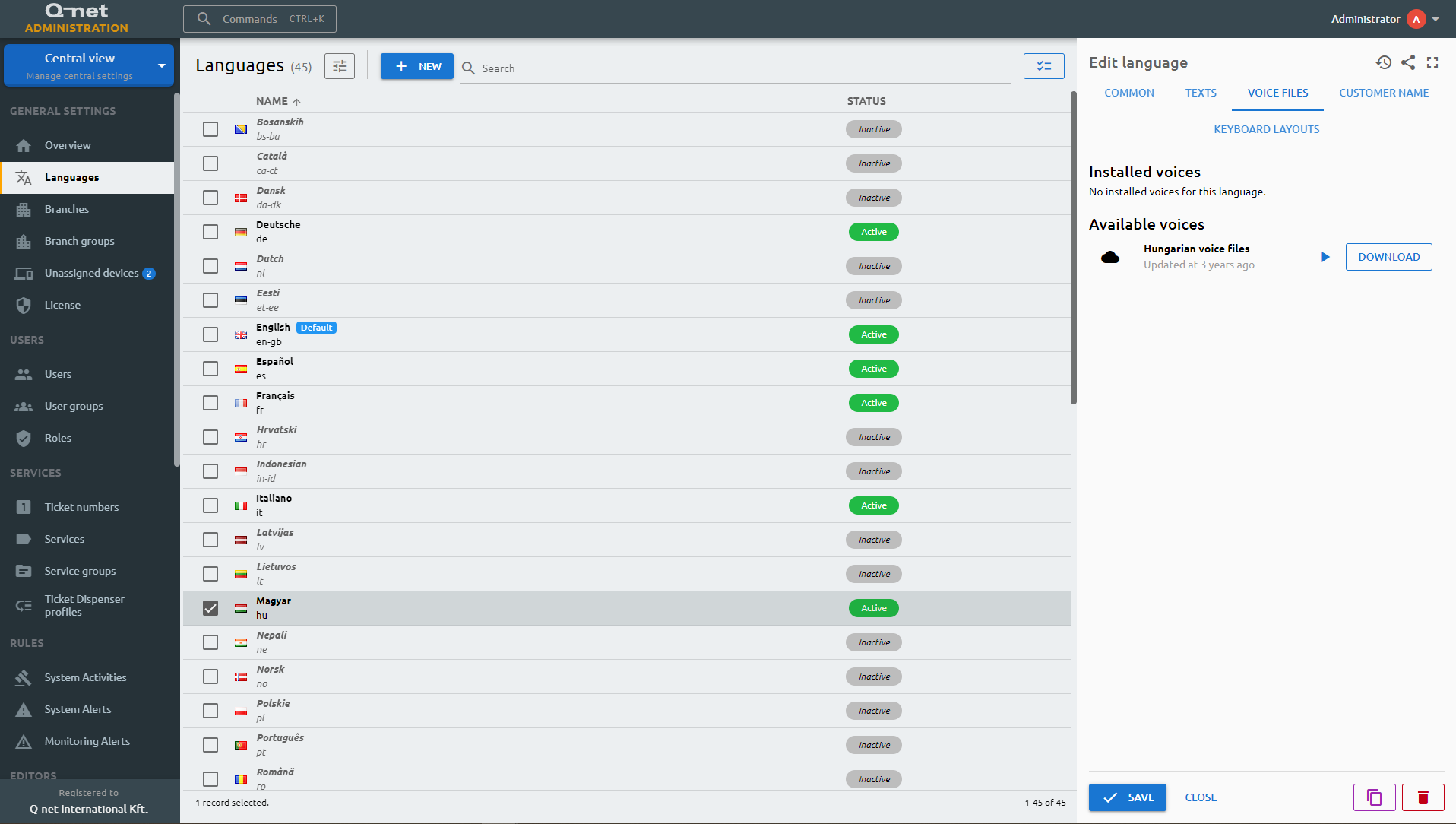
There are three options at the "Voice mode" setting. The "Offline" version is using the voice files installed with the application or downloaded at "Central view", "Languages", "Voice files" tab, after a particular language selected. These are pre-recorded sound files, depending on the language, there might be some limitations in ticket or counter numbers, letter prefixes.
Google TTS
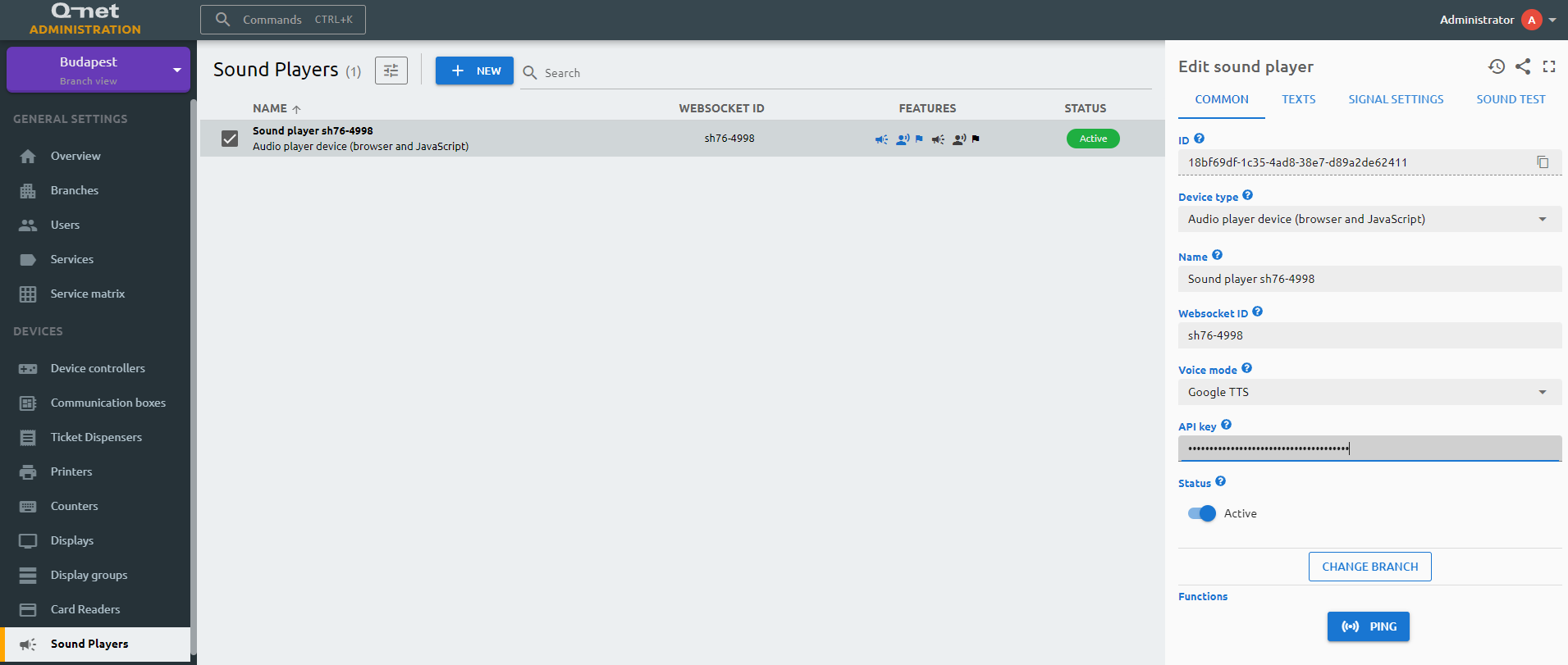
This option is using the Google TTS (Text to speech) solution, therefore it requires internet connection and Google subscription. A Google service account has to be created, where you can generate the necessary APIKey.
https://cloud.google.com/text-to-speech/docs/before-you-begin
The generated key has to be entered on the "External systems" page, on the "API keys" tab, in the "Google TTS" field:
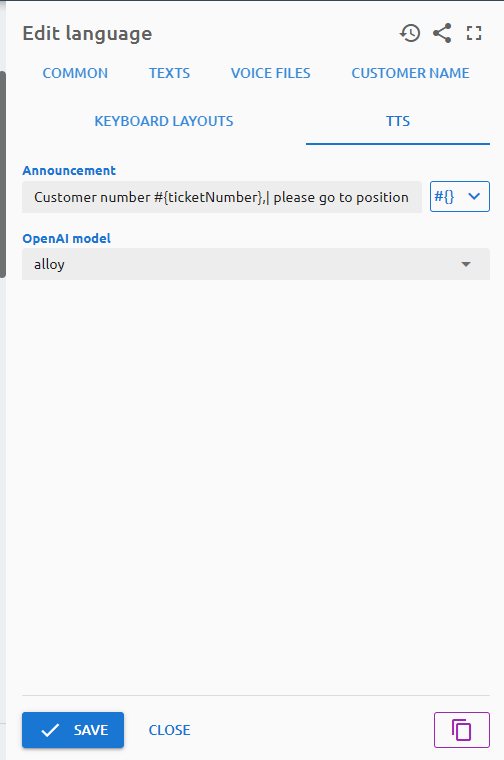
You can separate the announcement texts (with | character) to multiple parts and the server caches the generated parts. In this case, the earlier generated announcement parts won't be regenerated, so it's more cost-effective than the previous implementation.
Moreover, an OpenAI TTS solution is available as well. To use it, create an OpenAI API key and enter it on the "External systems" page, on the "API keys" tab, in the "OpenAI" field.
The announcement text configuration is moved from Sound player device settings to Language settings page.