Counters
Configuring the counters
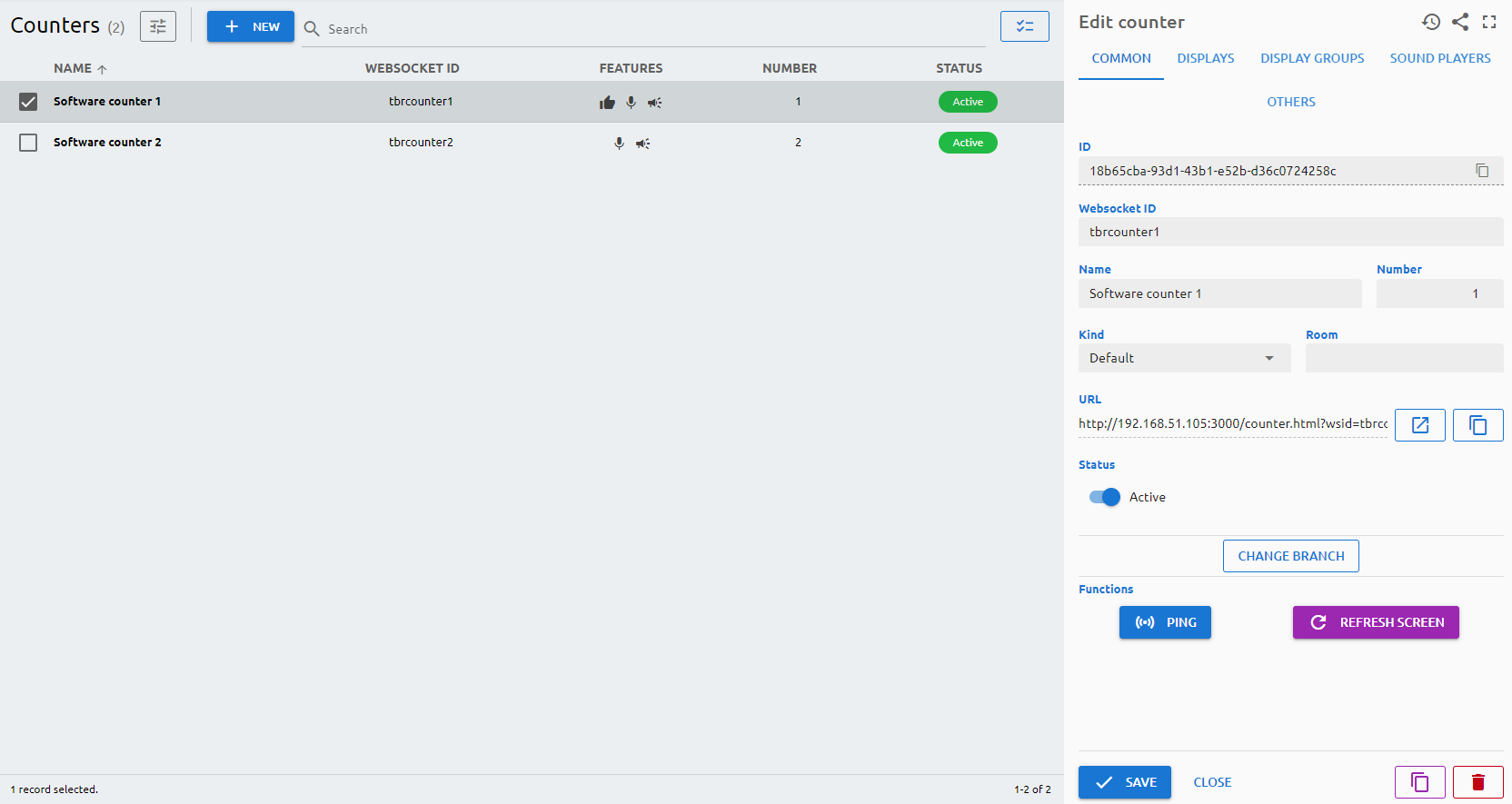
There are six web-based counters preconfigured. You can add or modify the number of counters based on the allowed amount in your certificate.
Parameters
Common
ID
The ID is given by the system and is required for internal processes, and can serve purposes for debugging in case of issues.
Websocket ID
The Websocket ID (or WSID) is the unique identifier of the counter.
Name
The Name is a user-given name.
Number
The Number of the counter refer to the physical location where the counter is used. This number will be shown on the connected display group when a ticket is called.
Kind
This is used only for statistic purposes.
Room
If there are multiple rooms with installed counters, you may assign the room name to the counter. The name of the room will be shown on the connected media players when a ticket is called, if the media player’s profile is set accordingly.
URL
You can reach the counter via a browser by navigating to this URL.
Status
Active/Inactive switch to determine if the device should be used in any service.
Displays
The system will show the list of the connected (detected) displays within the branch so you will need to select the one that should be assigned to that counter. Simply mark the checkbox and save the setting. When you configure the next counter the unassigned displays will appear only.
Display groups
You can configure here that the counter's calling information will be displayed on which display group.
Sound players
You can configure here that the counter's calling information will be played on which sound player.
Others
Feedback
You can assign a feedback device to the counter. You may assign the same feedback device to all counters.
Voice recorder
You can assign a voice recorder to the counter.
Custom JS
If you want to enhance the counter front-end functionality, you can add JavaScript to it.
Counter Functions
- Ping to check if the device is online and reachable in the network.
- Re-pair: pair the existing counter with the server again, for example after it has been reinstalled. See Pairing for details.
- Refresh Screen: refresh the screen of the counter